Wednesday, July 8, 2009

Oracle 10g RAC

Oracle 10g RAC On Linux Using NFS

http://www.oracle-base.com/articles/10g/OracleDB10gR2RACInstallationOnLinuxUsingNFS.php

This article describes the installation of Oracle 10g release 2 (10.2.0.1) RAC on Linux (Oracle Enterprise Linux 4.5) using NFS to provide the shared storage.

Introduction

NFS is an abbreviation of Network File System, a platform independent technology created by Sun Microsystems that allows shared access to files stored on computers via an interface called the Virtual File System (VFS) that runs on top of TCP/IP. Computers that share files are considered NFS servers, while those that access shared files are considered NFS clients. An individual computer can be either an NFS server, a NFS client or both.

We can use NFS to provide shared storage for a RAC installation. In a production environment we would expect the NFS server to be a NAS, but for testing it can just as easily be another server, or even one of the RAC nodes itself.

To cut costs, this articles uses one of the RAC nodes as the source of the shared storage. Obviously, this means if that node goes down the whole database is lost, so it's not a sensible idea to do this if you are testing high availability. If you have access to a NAS or a third server you can easily use that for the shared storage, making the whole solution much more resilient. Whichever route you take, the fundamentals of the installation are the same.

This article was inspired by the blog postings of Kevin Closson.

Download Software

Download the following software.

Operating System Installation

This article uses Oracle Enterprise Linux 4.5, but it will work equally well on CentOS 4 or Red Hat Enterprise Linux (RHEL) 4. A general pictorial guide to the operating system installation can be found here. More specifically, it should be a server installation with a minimum of 2G swap, firewall and secure Linux disabled and the following package groups installed:
  • X Window System
  • GNOME Desktop Environment
  • Editors
  • Graphical Internet
  • Server Configuration Tools
  • FTP Server
  • Development Tools
  • Legacy Software Development
  • Administration Tools
  • System Tools
To be consistent with the rest of the article, the following information should be set during the installation:

RAC1:
  • hostname: rac1.localdomain
  • IP Address eth0: 192.168.2.101 (public address)
  • Default Gateway eth0: 192.168.2.1 (public address)
  • IP Address eth1: 192.168.0.101 (private address)
  • Default Gateway eth1: none
RAC2:
  • hostname: rac2.localdomain
  • IP Address eth0: 192.168.2.102 (public address)
  • Default Gateway eth0: 192.168.2.1 (public address)
  • IP Address eth1: 192.168.0.102 (private address)
  • Default Gateway eth1: none
You are free to change the IP addresses to suit your network, but remember to stay consistent with those adjustments throughout the rest of the article.

Once the basic installation is complete, install the following packages whilst logged in as the root user.
# From Oracle Enterprise Linux 4.5 Disk 1
cd /media/cdrecorder/CentOS/RPMS
rpm -Uvh setarch-1*
rpm -Uvh compat-libstdc++-33-3*
rpm -Uvh make-3*
rpm -Uvh glibc-2*
cd /
eject

# From Oracle Enterprise Linux 4.5 Disk 2
cd /media/cdrecorder/CentOS/RPMS
rpm -Uvh openmotif-2*
rpm -Uvh compat-db-4*
rpm -Uvh gcc-3*
cd /
eject

# From Oracle Enterprise Linux 4.5 Disk 3
cd /media/cdrecorder/CentOS/RPMS
rpm -Uvh libaio-0*
rpm -Uvh rsh-*
rpm -Uvh compat-gcc-32-3*
rpm -Uvh compat-gcc-32-c++-3*
rpm -Uvh openmotif21*
cd /
eject

Oracle Installation Prerequisites

Perform the following steps whilst logged into the RAC1 virtual machine as the root user.

The /etc/hosts file must contain the following information.
127.0.0.1       localhost.localdomain   localhost
# Public
192.168.2.101 rac1.localdomain rac1
192.168.2.102 rac2.localdomain rac2
#Private
192.168.0.101 rac1-priv.localdomain rac1-priv
192.168.0.102 rac2-priv.localdomain rac2-priv
#Virtual
192.168.2.111 rac1-vip.localdomain rac1-vip
192.168.2.112 rac2-vip.localdomain rac2-vip
#NAS
192.168.2.101 nas1.localdomain nas1
Notice that the NAS1 entry is actually pointing to the RAC1 node. If you are using a real NAS or a third server to provide your shared storage put the correct IP address into the file.

Add the following lines to the /etc/sysctl.conf file.
kernel.shmall = 2097152
kernel.shmmax = 2147483648
kernel.shmmni = 4096
# semaphores: semmsl, semmns, semopm, semmni
kernel.sem = 250 32000 100 128
#fs.file-max = 65536
net.ipv4.ip_local_port_range = 1024 65000
#net.core.rmem_default=262144
#net.core.rmem_max=262144
#net.core.wmem_default=262144
#net.core.wmem_max=262144

# Additional and amended parameters suggested by Kevin Closson
net.core.rmem_default = 524288
net.core.wmem_default = 524288
net.core.rmem_max = 16777216
net.core.wmem_max = 16777216
net.ipv4.ipfrag_high_thresh=524288
net.ipv4.ipfrag_low_thresh=393216
net.ipv4.tcp_rmem=4096 524288 16777216
net.ipv4.tcp_wmem=4096 524288 16777216
net.ipv4.tcp_timestamps=0
net.ipv4.tcp_sack=0
net.ipv4.tcp_window_scaling=1
net.core.optmem_max=524287
net.core.netdev_max_backlog=2500
sunrpc.tcp_slot_table_entries=128
sunrpc.udp_slot_table_entries=128
net.ipv4.tcp_mem=16384 16384 16384

Run the following command to change the current kernel parameters.
/sbin/sysctl -p
Add the following lines to the /etc/security/limits.conf file.
*               soft    nproc   2047
* hard nproc 16384
* soft nofile 1024
* hard nofile 65536
Add the following line to the /etc/pam.d/login file, if it does not already exist.
session    required     /lib/security/pam_limits.so
Disable secure linux by editing the /etc/selinux/config file, making sure the SELINUX flag is set as follows.
SELINUX=disabled
Alternatively, this alteration can be done using the GUI tool (Applications > System Settings > Security Level). Click on the SELinux tab and disable the feature.

Set the hangcheck kernel module parameters by adding the following line to the /etc/modprobe.conf file.
options hangcheck-timer hangcheck_tick=30 hangcheck_margin=180
To load the module immediately, execute "modprobe -v hangcheck-timer".

Create the new groups and users.
groupadd oinstall
groupadd dba
groupadd oper

useradd -g oinstall -G dba oracle
passwd oracle
During the installation, both RSH and RSH-Server were installed. Enable remote shell and rlogin by doing the following.
chkconfig rsh on
chkconfig rlogin on
service xinetd reload
Create the /etc/hosts.equiv file as the root user.
touch /etc/hosts.equiv
chmod 600 /etc/hosts.equiv
chown root:root /etc/hosts.equiv
Edit the /etc/hosts.equiv file to include all the RAC nodes:
+rac1 oracle
+rac2 oracle
+rac1-priv oracle
+rac2-priv oracle
Login as the oracle user and add the following lines at the end of the .bash_profile file.
# Oracle Settings
TMP=/tmp; export TMP
TMPDIR=$TMP; export TMPDIR

ORACLE_BASE=/u01/app/oracle; export ORACLE_BASE
ORACLE_HOME=$ORACLE_BASE/product/10.2.0/db_1; export ORACLE_HOME
ORACLE_SID=RAC1; export ORACLE_SID
ORACLE_TERM=xterm; export ORACLE_TERM
PATH=/usr/sbin:$PATH; export PATH
PATH=$ORACLE_HOME/bin:$PATH; export PATH

LD_LIBRARY_PATH=$ORACLE_HOME/lib:/lib:/usr/lib; export LD_LIBRARY_PATH
CLASSPATH=$ORACLE_HOME/JRE:$ORACLE_HOME/jlib:$ORACLE_HOME/rdbms/jlib; export CLASSPATH

if [ $USER = "oracle" ]; then
if [ $SHELL = "/bin/ksh" ]; then
ulimit -p 16384
ulimit -n 65536
else
ulimit -u 16384 -n 65536
fi
fi
Remember to set the ORACLE_SID to RAC2 on the second node.

Create Shared Disks

First we need to set up some NFS shares. In this case we will do this on the RAC1 node, but you can do the on a NAS or a third server if you have one available. On the RAC1 node create the following directories.
mkdir /share1
mkdir /share2
Add the following lines to the /etc/exports file.
/share1                  *(rw,sync,no_wdelay,insecure_locks,no_root_squash)
/share2 *(rw,sync,no_wdelay,insecure_locks,no_root_squash)
Run the following command to export the NFS shares.
chkconfig nfs on
service nfs restart
On both RAC1 and RAC2 create some mount points to mount the NFS shares to.
mkdir /u01
mkdir /u02
Add the following lines to the "/etc/fstab" file. The mount options are suggestions from Kevin Closson.
nas1:/share1  /u01  nfs  rw,bg,hard,nointr,tcp,vers=3,timeo=300,rsize=32768,wsize=32768,actimeo=0  0 0
nas1:/share2 /u02 nfs rw,bg,hard,nointr,tcp,vers=3,timeo=300,rsize=32768,wsize=32768,actimeo=0 0 0
Mount the NFS shares on both servers.
mount /u01
mount /u02
Create the shared CRS Configuration and Voting Disk files.
touch /u01/crs_configuration
touch /u01/voting_disk
Create the directories in which the Oracle software will be installed.
mkdir -p /u01/crs/oracle/product/10.2.0/crs
mkdir -p /u01/app/oracle/product/10.2.0/db_1
mkdir -p /u01/oradata
chown -R oracle:oinstall /u01 /u02

Install the Clusterware Software

Place the clusterware and database software in the /u02 directory and unzip it.
cd /u02
unzip 10201_clusterware_linux32.zip
unzip 10201_database_linux32.zip
Login to RAC1 as the oracle user and start the Oracle installer.
cd /u02/clusterware
./runInstaller
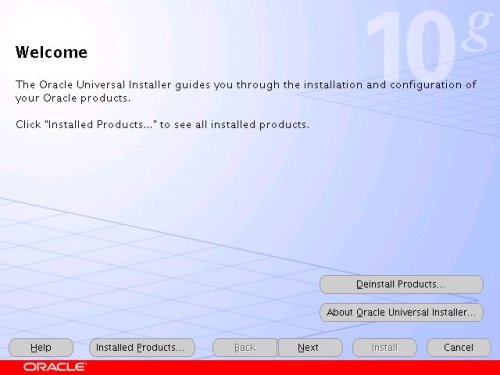
On the "Welcome" screen, click the "Next" button.

Clusterware Welcome

Accept the default inventory location by clicking the "Next" button.
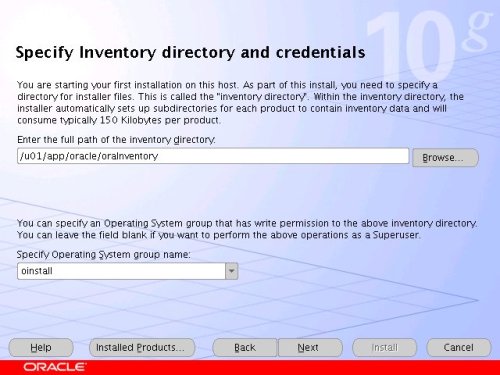
Clusterware Inventory

Enter the appropriate name and path for the Oracle Home and click the "Next" button.
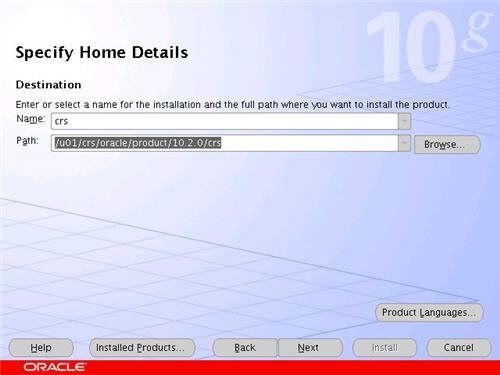
Clusterware Oracle Home

Wait while the prerequisite checks are done. If you have any failures correct them and retry the tests before clicking the "Next" button.
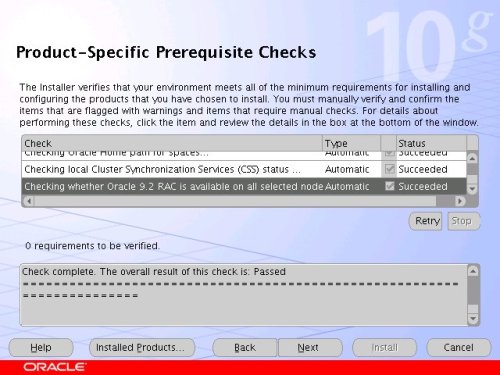
Clusterware Prerequisites

The "Specify Cluster Configuration" screen shows only the RAC1 node in the cluster. Click the "Add" button to continue.
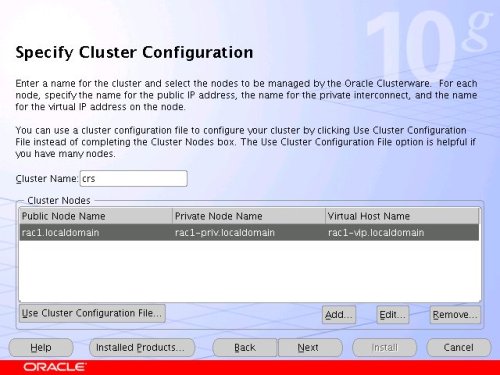
Clusterware Cluster Config

Enter the details for the RAC2 node and click the "OK" button.
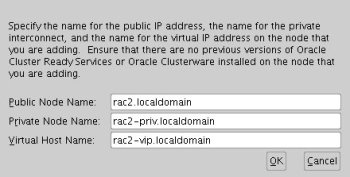
Clusterware Cluster Config Add

Click the "Next" button to continue.

Clusterware Cluster Config

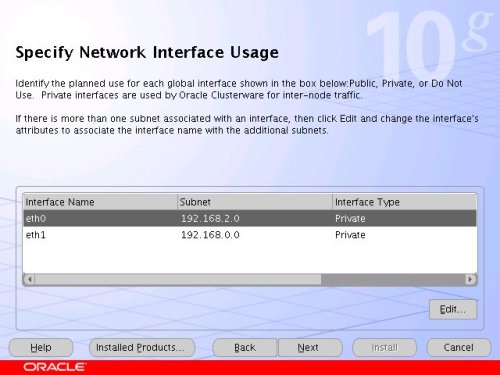
The "Specific Network Interface Usage" screen defines how each network interface will be used. Highlight the "eth0" interface and click the "Edit" button.

Clusterware Network Interface Usage

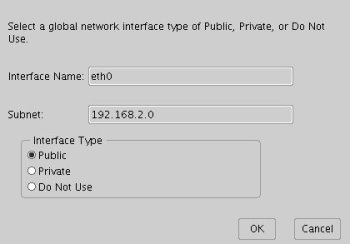
Set the "eht0" interface type to "Public" and click the "OK" button.

Clusterware Network Interface Eth0 Type

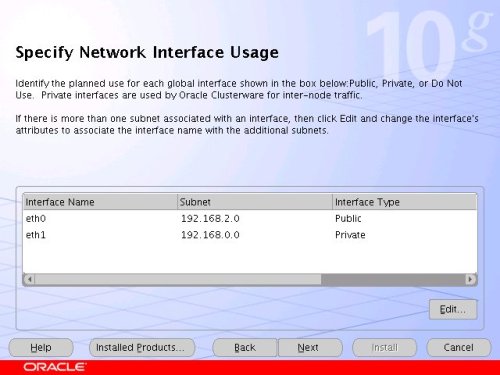
Leave the "eth1" interface as private and click the "Next" button.

Clusterware Network Interface Usage

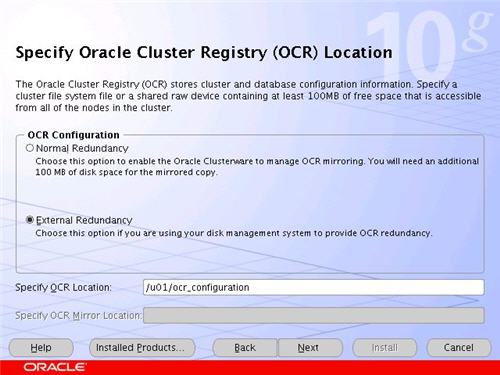
Click the "External Redundancy" option, enter "/u01/ocr_configuration" as the OCR Location and click the "Next" button. To have greater redundancy we would need to define another shared disk for an alternate location.

Clusterware OCR Location

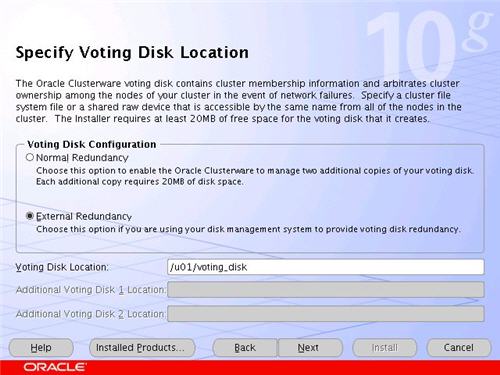
Click the "External Redundancy" option, enter "/u01/voting_disk" as the Voting Disk Location and click the "Next" button. To have greater redundancy we would need to define another shared disk for an alternate location.

Clusterware Voting Disk Location

On the "Summary" screen, click the "Install" button to continue.

Clusterware Summary

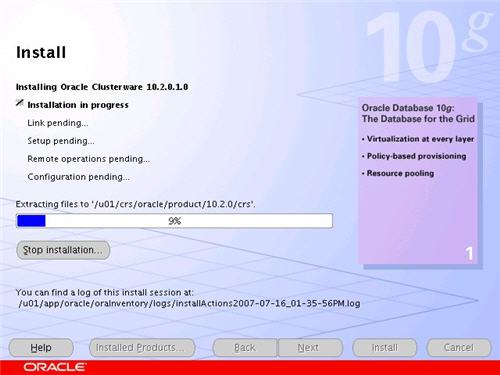
Wait while the installation takes place.

Clusterware Install

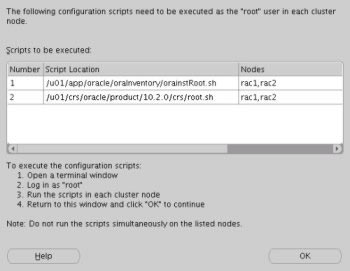
Once the install is complete, run the orainstRoot.sh and root.sh scripts on both nodes as directed on the following screen.

Clusterware Post Install Scripts

The output from the orainstRoot.sh file should look something like that listed below.
# cd /u01/app/oracle/oraInventory
# ./orainstRoot.sh
Changing permissions of /u01/app/oracle/oraInventory to 770.
Changing groupname of /u01/app/oracle/oraInventory to oinstall.
The execution of the script is complete
#
The output of the root.sh will vary a little depending on the node it is run on. The following text is the output from the RAC1 node.
# cd /u01/crs/oracle/product/10.2.0/crs
# ./root.sh
WARNING: directory '/u01/crs/oracle/product/10.2.0' is not owned by root
WARNING: directory '/u01/crs/oracle/product' is not owned by root
WARNING: directory '/u01/crs/oracle' is not owned by root
WARNING: directory '/u01/crs' is not owned by root
WARNING: directory '/u01' is not owned by root
Checking to see if Oracle CRS stack is already configured
/etc/oracle does not exist. Creating it now.

Setting the permissions on OCR backup directory
Setting up NS directories
Oracle Cluster Registry configuration upgraded successfully
WARNING: directory '/u01/crs/oracle/product/10.2.0' is not owned by root
WARNING: directory '/u01/crs/oracle/product' is not owned by root
WARNING: directory '/u01/crs/oracle' is not owned by root
WARNING: directory '/u01/crs' is not owned by root
WARNING: directory '/u01' is not owned by root
assigning default hostname rac1 for node 1.
assigning default hostname rac2 for node 2.
Successfully accumulated necessary OCR keys.
Using ports: CSS=49895 CRS=49896 EVMC=49898 and EVMR=49897.
node :
node 1: rac1 rac1-priv rac1
node 2: rac2 rac2-priv rac2
Creating OCR keys for user 'root', privgrp 'root'..
Operation successful.
Now formatting voting device: /u01/voting_disk
Format of 1 voting devices complete.
Startup will be queued to init within 90 seconds.
Adding daemons to inittab
Expecting the CRS daemons to be up within 600 seconds.
CSS is active on these nodes.
rac1
CSS is inactive on these nodes.
rac2
Local node checking complete.
Run root.sh on remaining nodes to start CRS daemons.
#
Ignore the directory ownership warnings. We should really use a separate directory structure for the clusterware so it can be owned by the root user, but it has little effect on the finished results.

The output from the RAC2 node is listed below.
# /u01/crs/oracle/product/10.2.0/crs
# ./root.sh
WARNING: directory '/u01/crs/oracle/product/10.2.0' is not owned by root
WARNING: directory '/u01/crs/oracle/product' is not owned by root
WARNING: directory '/u01/crs/oracle' is not owned by root
WARNING: directory '/u01/crs' is not owned by root
WARNING: directory '/u01' is not owned by root
Checking to see if Oracle CRS stack is already configured
/etc/oracle does not exist. Creating it now.

Setting the permissions on OCR backup directory
Setting up NS directories
Oracle Cluster Registry configuration upgraded successfully
WARNING: directory '/u01/crs/oracle/product/10.2.0' is not owned by root
WARNING: directory '/u01/crs/oracle/product' is not owned by root
WARNING: directory '/u01/crs/oracle' is not owned by root
WARNING: directory '/u01/crs' is not owned by root
WARNING: directory '/u01' is not owned by root
clscfg: EXISTING configuration version 3 detected.
clscfg: version 3 is 10G Release 2.
assigning default hostname rac1 for node 1.
assigning default hostname rac2 for node 2.
Successfully accumulated necessary OCR keys.
Using ports: CSS=49895 CRS=49896 EVMC=49898 and EVMR=49897.
node :
node 1: rac1 rac1-priv rac1
node 2: rac2 rac2-priv rac2
clscfg: Arguments check out successfully.

NO KEYS WERE WRITTEN. Supply -force parameter to override.
-force is destructive and will destroy any previous cluster
configuration.
Oracle Cluster Registry for cluster has already been initialized
Startup will be queued to init within 90 seconds.
Adding daemons to inittab
Expecting the CRS daemons to be up within 600 seconds.
CSS is active on these nodes.
rac1
rac2
CSS is active on all nodes.
Waiting for the Oracle CRSD and EVMD to start
Oracle CRS stack installed and running under init(1M)
Running vipca(silent) for configuring nodeapps
The given interface(s), "eth0" is not public. Public interfaces should be used to configure virtual IPs.
#
Here you can see that some of the configuration steps are omitted as they were done by the first node. In addition, the final part of the script ran the Virtual IP Configuration Assistant (VIPCA) in silent mode, but it failed. This is because my public IP addresses are actually within the "192.168.255.255" range which is a private IP range. If you were using "legal" IP addresses you would not see this and you could ignore the following VIPCA steps.

Run the VIPCA manually as the root user on the RAC2 node using the following command.
# cd /u01/crs/oracle/product/10.2.0/crs/bin
# ./vipca
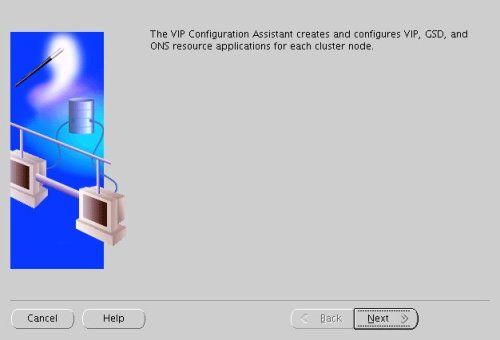
Click the "Next" button on the VIPCA welcome screen.

Clusterware VIPCA Welcome

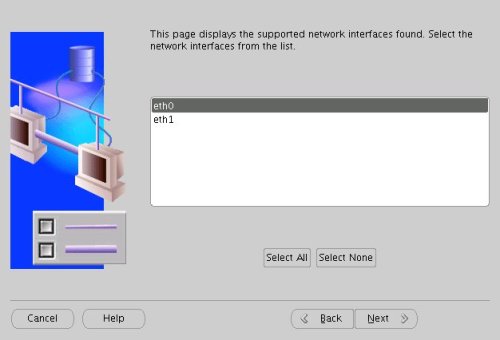
Highlight the "eth0" interface and click the "Next" button.

Clusterware VIPCA Interfaces

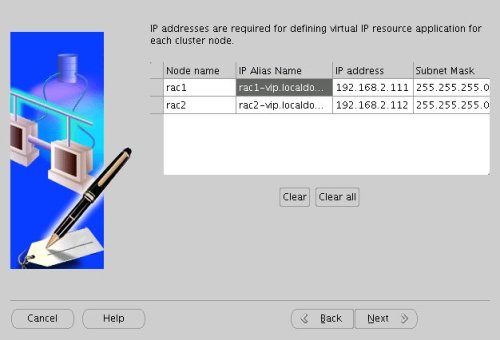
Enter the vitual IP alias and address for each node. Once you enter the first alias, the remaining values should default automatically. Click the "Next" button to continue.
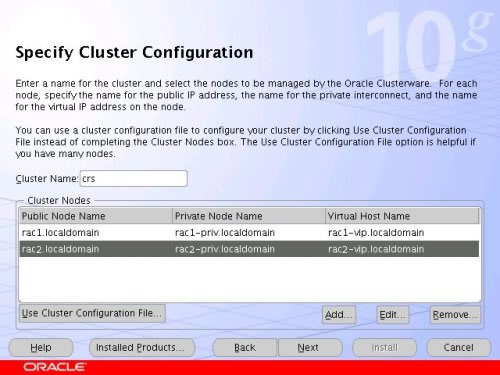
Clusterware VIPCA Virtual IPs

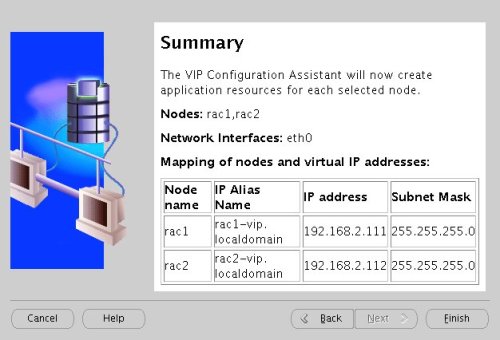
Accept the summary information by clicking the "Finish" button.

Clusterware VIPCA Summary

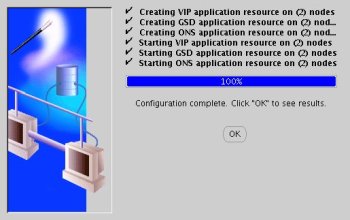
Wait until the configuration is complete, then click the "OK" button.

Clusterware VIPCA Complete

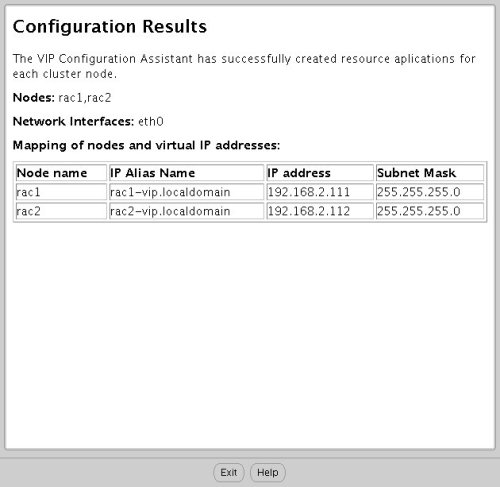
Accept the VIPCA results by clicking the "Exit" button.

Clusterware VIPCA Results

You should now return to the "Execute Configuration Scripts" screen on RAC1 and click the "OK" button.

Clusterware Post Install Scripts

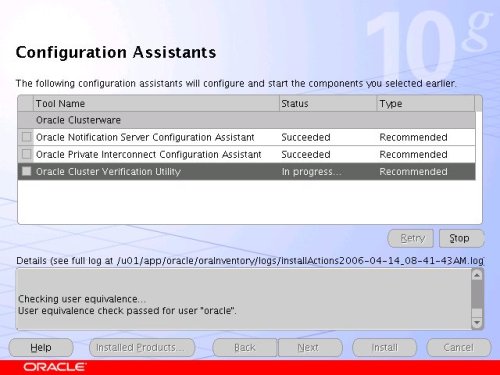
Wait for the configuration assistants to complete.

Clusterware Config Assistants

When the installation is complete, click the "Exit" button to leave the installer.

Clusterware Complete

The clusterware installation is now complete.

Install the Database Software

Login to RAC1 as the oracle user and start the Oracle installer.
cd /u02/database
./runInstaller
On the "Welcome" screen, click the "Next" button.

Database Welcome

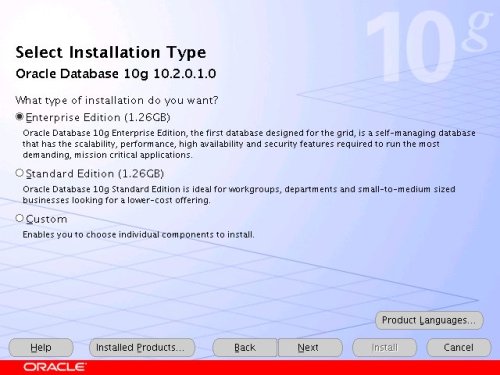
Select the "Enterprise Edition" option and click the "Next" button.

Database Installation Type

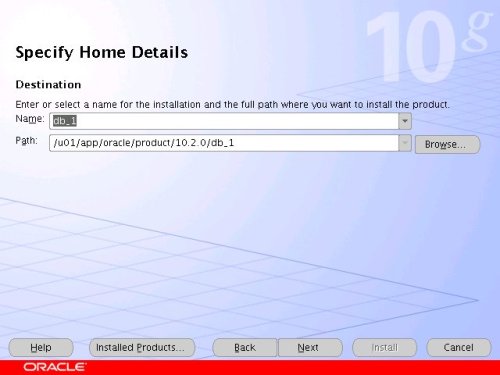
Enter the name and path for the Oracle Home and click the "Next" button.

Database Specify Home

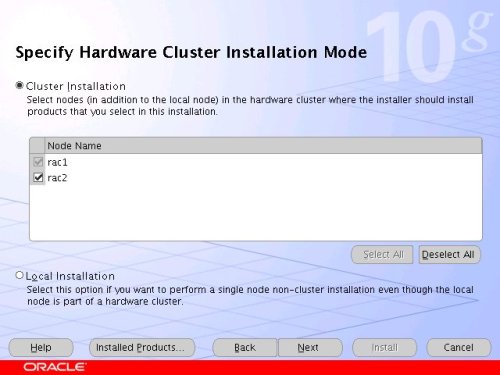
Select the "Cluster Install" option and make sure both RAC nodes are selected, the click the "Next" button.

Database Cluster Installation

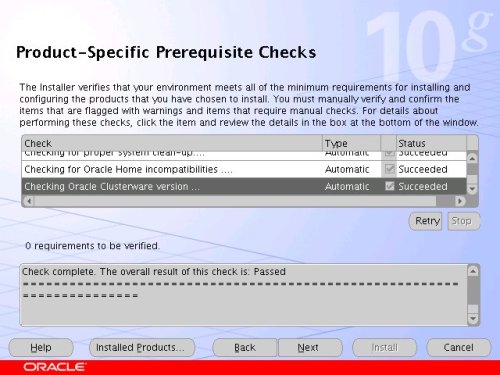
Wait while the prerequisite checks are done. If you have any failures correct them and retry the tests before clicking the "Next" button.

Database Prerequisites

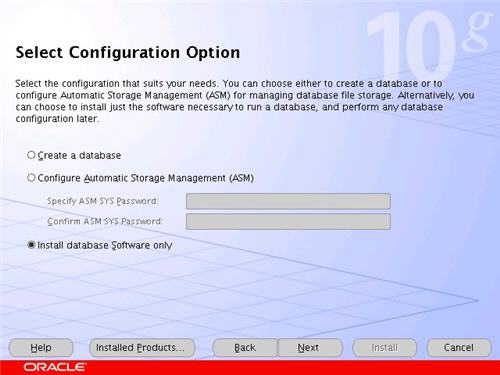
Select the "Install database Software only" option, then click the "Next" button.

Database Configuration Option

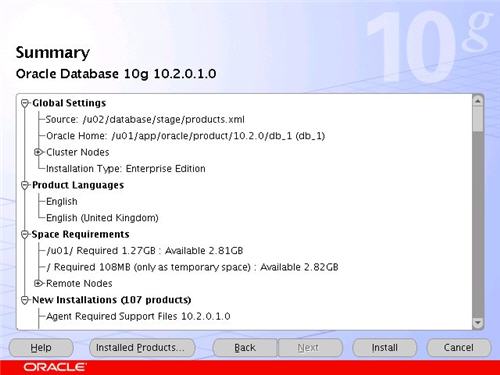
On the "Summary" screen, click the "Install" button to continue.
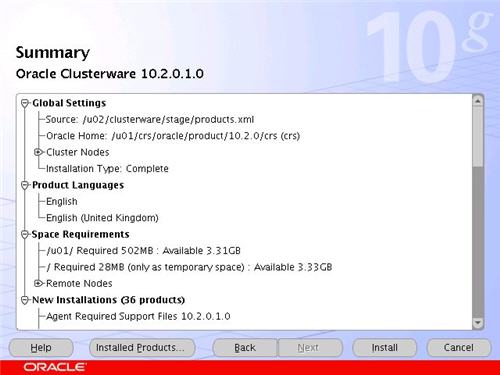
Database Summary

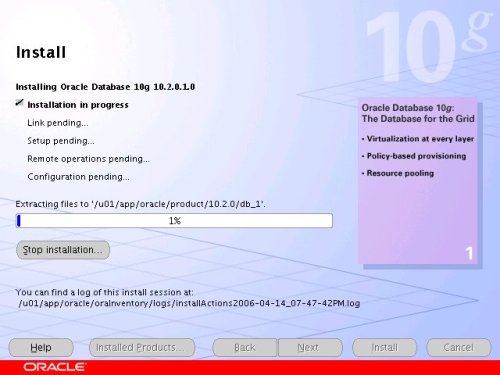
Wait while the database software installs.

Database Install

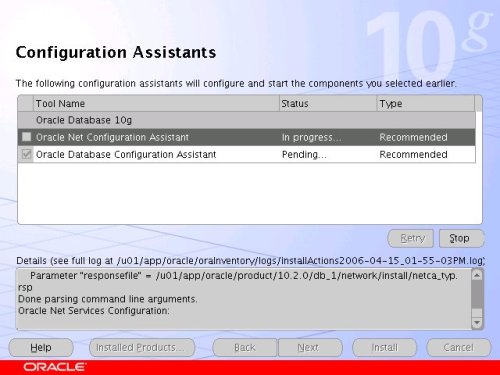
Once the installation is complete, wait while the configuration assistants run.

Database Configuration Asistants

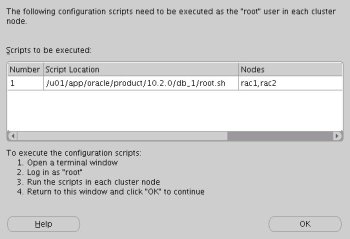
Execute the "root.sh" scripts on both nodes, as instructed on the "Execute Configuration scripts" screen, then click the "OK" button.

Database Post Install Scripts

When the installation is complete, click the "Exit" button to leave the installer.
Database Complete

Create a Database using the DBCA

Login to RAC1 as the oracle user and start the Database Configuration Assistant.
dbca
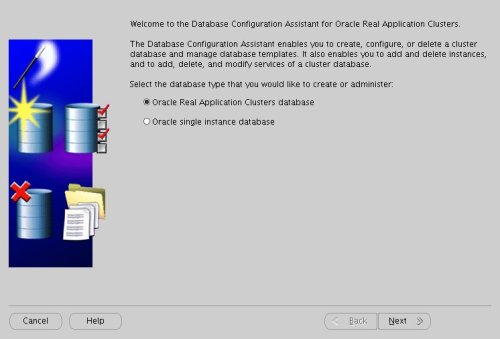
On the "Welcome" screen, select the "Oracle Real Application Clusters database" option and click the "Next" button.

DBCA Welcome

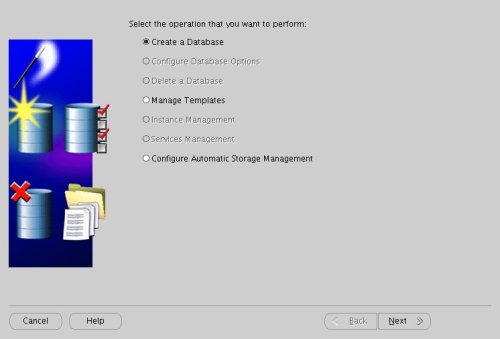
Select the "Create a Database" option and click the "Next" button.

DBCA Create Database

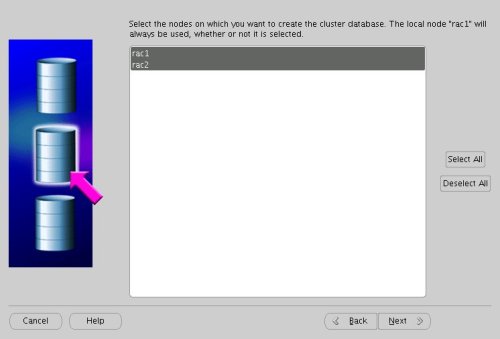
Highlight both RAC nodes and click the "Next" button.

DBCA Node Selection

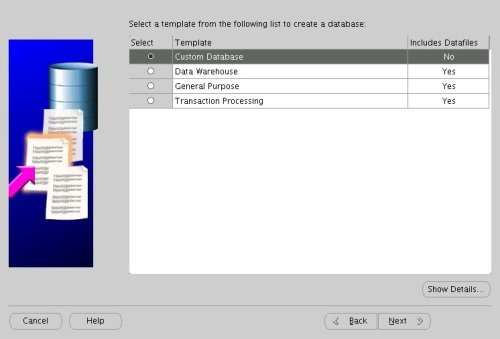
Select the "Custom Database" option and click the "Next" button.

DBCA CustomDatabase

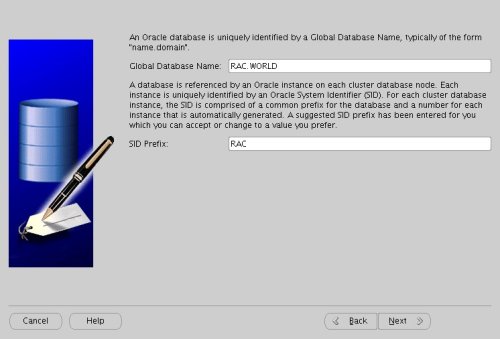
Enter the values "RAC.WORLD" and "RAC" for the Global Database Name and SID Prefix respectively, then click the "Next" button.

DBCA Database ID

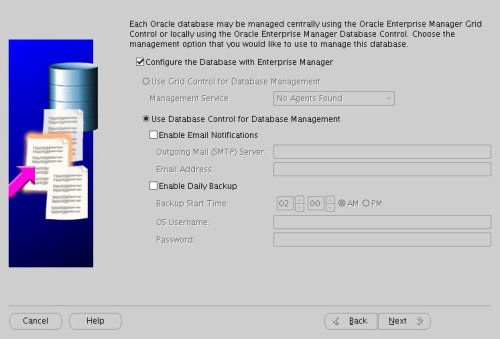
Accept the management options by clicking the "Next" button. If you are attempting the installation on a server with limited memory, you may prefer not to configure Enterprise Manager at this time.

DBCA Management Options

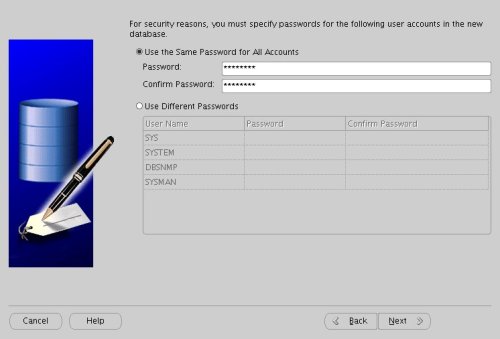
Enter database passwords then click the "Next" button.

DBCA Database Credentials

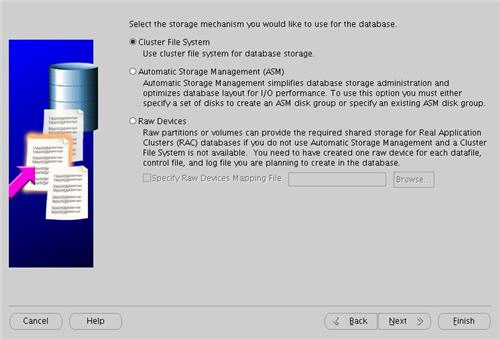
Select the "Cluster File System" option, then click the "Next" button.
DBCA CFS

Select the "Use Oracle-Managed Files" option and enter "/u01/oradata/" as the database location, then click the "Next" button.
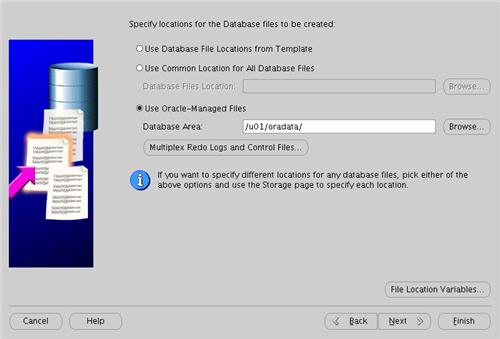
DBCA Database Location

Check the "Specify Flash Recovery Area" option and accept the default location by clicking the "Next" button.
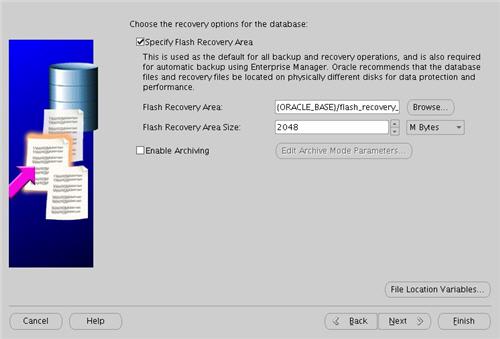
DBCA Recovery Config

Uncheck all but the "Enterprise Manager Repository" option, then click the "Standard Database Components..." button.
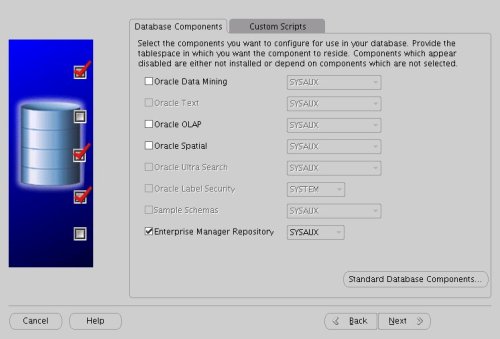
DBCA Database Content

Uncheck all but the "Oracle JVM" option, then click the "OK" button, followed by the "Next" button on the previous screen. If you are attempting the installation on a server with limited memory, you may prefer not to install the JVM at this time.
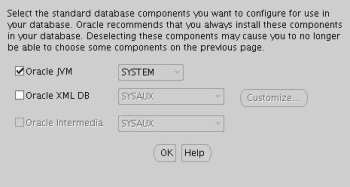
DBCA Standard DB Components

Accept the current database services configuration by clicking the "Next" button.
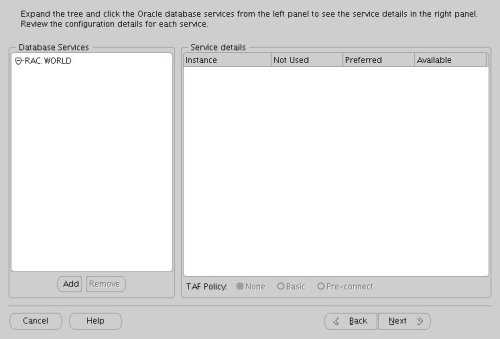
DBCA Services

Select the "Custom" memory management option and accept the default settings by clicking the "Next" button.
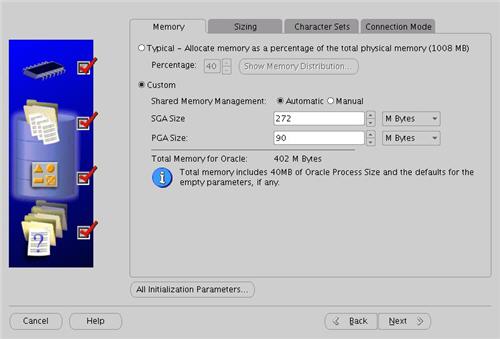
DBCA Parameters

Accept the database storage settings by clicking the "Next" button.
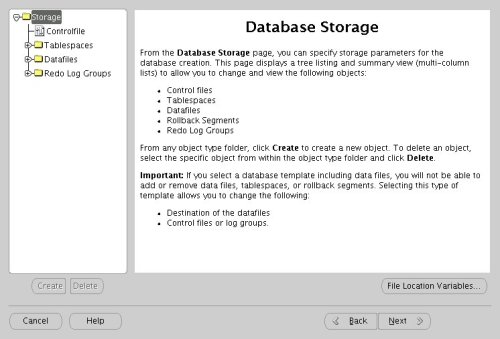
DBCA Storage

Accept the database creation options by clicking the "Finish" button.
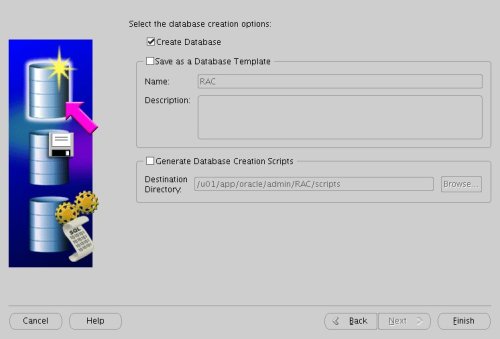
DBCA Creation Options

Accept the summary information by clicking the "OK" button.
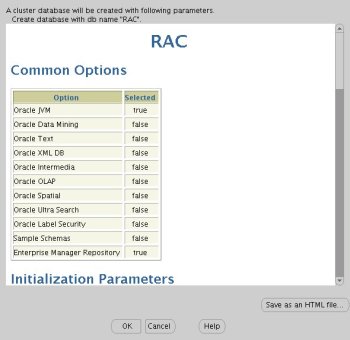
DBCA Summary

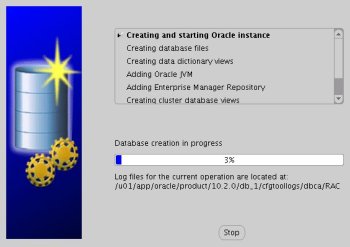
Wait while the database is created.

DBCA Creation

Once the database creation is complete you are presented with the following screen. Make a note of the information on the screen and click the "Exit" button.
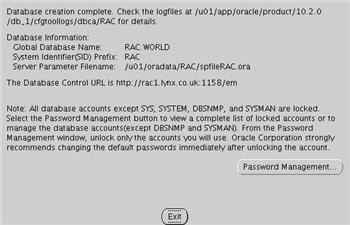
DBCA Complete

The RAC database creation is now complete.

TNS Configuration

Once the installation is complete, the "$ORACLE_HOME/network/admin/listener.ora" file in the shared $ORACLE_HOME will contain the following entries.
LISTENER_RAC2 =
(DESCRIPTION_LIST =
(DESCRIPTION =
(ADDRESS_LIST =
(ADDRESS = (PROTOCOL = TCP)(HOST = rac2-vip.lynx.co.uk)(PORT = 1521)(IP = FIRST))
)
(ADDRESS_LIST =
(ADDRESS = (PROTOCOL = TCP)(HOST = 192.168.2.102)(PORT = 1521)(IP = FIRST))
)
(ADDRESS_LIST =
(ADDRESS = (PROTOCOL = IPC)(KEY = EXTPROC))
)
)
)

LISTENER_RAC1 =
(DESCRIPTION_LIST =
(DESCRIPTION =
(ADDRESS_LIST =
(ADDRESS = (PROTOCOL = TCP)(HOST = rac1-vip.lynx.co.uk)(PORT = 1521)(IP = FIRST))
)
(ADDRESS_LIST =
(ADDRESS = (PROTOCOL = TCP)(HOST = 192.168.2.101)(PORT = 1521)(IP = FIRST))
)
(ADDRESS_LIST =
(ADDRESS = (PROTOCOL = IPC)(KEY = EXTPROC))
)
)
)
The shared "$ORACLE_HOME/network/admin/tnsnames.ora" file will contain the following entries.
RAC =
(DESCRIPTION =
(ADDRESS = (PROTOCOL = TCP)(HOST = rac1-vip.lynx.co.uk)(PORT = 1521))
(ADDRESS = (PROTOCOL = TCP)(HOST = rac2-vip.lynx.co.uk)(PORT = 1521))
(LOAD_BALANCE = yes)
(CONNECT_DATA =
(SERVER = DEDICATED)
(SERVICE_NAME = RAC.WORLD)
)
)

LISTENERS_RAC =
(ADDRESS_LIST =
(ADDRESS = (PROTOCOL = TCP)(HOST = rac1-vip.lynx.co.uk)(PORT = 1521))
(ADDRESS = (PROTOCOL = TCP)(HOST = rac2-vip.lynx.co.uk)(PORT = 1521))
)

RAC2 =
(DESCRIPTION =
(ADDRESS = (PROTOCOL = TCP)(HOST = rac2-vip.lynx.co.uk)(PORT = 1521))
(CONNECT_DATA =
(SERVER = DEDICATED)
(SERVICE_NAME = RAC.WORLD)
(INSTANCE_NAME = RAC2)
)
)

RAC1 =
(DESCRIPTION =
(ADDRESS = (PROTOCOL = TCP)(HOST = rac1-vip.lynx.co.uk)(PORT = 1521))
(CONNECT_DATA =
(SERVER = DEDICATED)
(SERVICE_NAME = RAC.WORLD)
(INSTANCE_NAME = RAC1)
)
)
This configuration allows direct connections to specific instance, or using a load balanced connection to the main service.
$ sqlplus / as sysdba

SQL*Plus: Release 10.2.0.1.0 - Production on Tue Apr 18 12:27:11 2006

Copyright (c) 1982, 2005, Oracle. All rights reserved.


Connected to:
Oracle Database 10g Enterprise Edition Release 10.2.0.1.0 - Production
With the Partitioning, Real Application Clusters, OLAP and Data Mining options

SQL> CONN sys/password@rac1 AS SYSDBA
Connected.
SQL> SELECT instance_name, host_name FROM v$instance;

INSTANCE_NAME HOST_NAME
---------------- ----------------------------------------------------------------
RAC1 rac1.localdomain

SQL> CONN sys/password@rac2 AS SYSDBA
Connected.
SQL> SELECT instance_name, host_name FROM v$instance;

INSTANCE_NAME HOST_NAME
---------------- ----------------------------------------------------------------
RAC2 rac2.localdomain

SQL> CONN sys/password@rac AS SYSDBA
Connected.
SQL> SELECT instance_name, host_name FROM v$instance;

INSTANCE_NAME HOST_NAME
---------------- ----------------------------------------------------------------
RAC1 rac1.localdomain

SQL>

Check the Status of the RAC

There are several ways to check the status of the RAC. The srvctl utility shows the current configuration and status of the RAC database.
$ srvctl config database -d RAC
rac1 RAC1 /u01/app/oracle/product/10.2.0/db_1
rac2 RAC2 /u01/app/oracle/product/10.2.0/db_1
$

$ srvctl status database -d RAC
Instance RAC1 is running on node rac1
Instance RAC2 is running on node rac2
$
The V$ACTIVE_INSTANCES view can also display the current status of the instances.
$ sqlplus / as sysdba

SQL*Plus: Release 10.2.0.1.0 - Production on Tue Apr 18 12:15:15 2006

Copyright (c) 1982, 2005, Oracle. All rights reserved.


Connected to:
Oracle Database 10g Enterprise Edition Release 10.2.0.1.0 - Production
With the Partitioning, Real Application Clusters, OLAP and Data Mining options

SQL> SELECT * FROM v$active_instances;

INST_NUMBER INST_NAME
----------- ------------------------------------------------------------
1 rac1.localdomain:RAC1
2 rac2.localdomain:RAC2

SQL>
Finally, the GV$ allow you to display global information for the whole RAC.
SQL> SELECT inst_id, username, sid, serial# FROM gv$session WHERE username IS NOT NULL;

INST_ID USERNAME SID SERIAL#
---------- ------------------------------ ---------- ----------
1 SYS 127 2
1 SYS 128 28
1 SYS 130 10
1 SYS 131 4
1 SYS 133 9
1 DBSNMP 134 27
1 DBSNMP 135 1
1 SYS 153 122
2 SYSMAN 120 243
2 DBSNMP 122 37
2 DBSNMP 124 93

INST_ID USERNAME SID SERIAL#
---------- ------------------------------ ---------- ----------
2 SYSMAN 125 2
2 SYSMAN 127 6
2 SYS 128 26
2 SYS 129 30
2 SYS 130 3
2 SYS 133 149
2 SYSMAN 134 58
2 SYS 136 32

19 rows selected.

SQL>
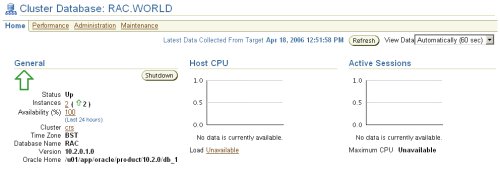
If you have configured Enterprise Manager, it can be used to view the configuration and current status of the database.

Oracle Enterprise Manager

Direct and Asynchronous I/O

Remember to use direct I/O and asynchronous I/O to improve performance. Direct I/O has been supported over NFS for some time, but support for asynchronous I/O over NFS was only introduced in RHEL 4 Update 3 (and its clones), so you need to use an up to date version of your Linux distribution to take advantage of this feature.

You can get details about this Direct and Asynchronous I/O by following the link.

For more information see:

Friday, June 5, 2009

Solaris iSCSI Initiator Setup

root@s01# svcs -a | grep iscsi
disabled 19:16:32 svc:/network/iscsi_initiator:default
disabled 19:17:41 svc:/system/iscsitgt:default

root@s01# svcadm enable network/iscsi_initiator
root@s01# svcs -a | grep iscsi
disabled 19:17:41 svc:/system/iscsitgt:default
online 19:29:26 svc:/network/iscsi_initiator:default

root@s01# iscsiadm add discovery-address 192.168.2.2:3260

root@s01# iscsiadm modify discovery -t enable
root@s01# format
Searching for disks...

For more info see this

http://docs.sun.com/app/docs/doc/819-2723/fmvcd?a=view


Tuesday, January 20, 2009

SAP Installation


SAP installation on Linux

please check "sysctl -a" output, especially

kernel.sem = 1250 256000 100 1024

kernel.msgmnb = 65536

kernel.msgmni = 1024

kernel.msgmax = 65536

kernel.shmmni = 4096

kernel.shmall = 4294967296

kernel.shmmax = 68719476736

Enter above values in
/etc/sysctl.conf
and run "sysctl -p" and "sysctl -a"
Increase swap space
dd if=/dev/zero of=swapfile bs=1024 count=132207
chmod 600 swapfile
mkswap swapfile
swapon swapfile

/etc/security/limits.conf ( add below lines)
@sapsys hard nofile 32800
@sapsys soft nofile 32800
@dba hard nofile 32800
@dba soft nofile 32800
oracle soft nproc 2047
oracle hard nproc 16384
oracle soft nofile 1024
oracle hard nofile 65536
export TEMP=/tmp
umask 022 /tmp
chmod 777 /tmp


[root@broad ~]# rsh mosel -l root: vol status | grep broad
broad_sapdata online raid_dp, flex nosnap=on, nosnapdir=on,
broad_sapmirrorlog online raid_dp, flex nosnap=on, nosnapdir=on
broad_saplog online raid_dp, flex nosnap=on, nosnapdir=on
[root@broad ~]# rsh mosel -l root: vol size broad_sapdata
vol size: Flexible volume 'broad_sapdata' has size 130g.
[root@broad ~]# rsh mosel -l root: vol size broad_saplog
vol size: Flexible volume 'broad_saplog' has size 140g.
[root@broad ~]# rsh mosel -l root: vol size broad_sapmirrorlog
vol size: Flexible volume 'broad_sapmirrorlog' has size 5g.
DG
snapdrive storage create -dg CER_oracledg -lunsize 60g -lun mosel:/vol/broad_saplog/oracledglun
[root@broad ~]# cat fs.sh
lvcreate -L7g -noracle_stage CER_oracledg
lvcreate -L3g -noracle_client CER_oracledg
lvcreate -L10g -noracle_102_64 CER_oracledg
lvcreate -L5g -noracle_origlogA CER_oracledg
lvcreate -L5g -noracle_origlogB CER_oracledg
lvcreate -L10g -noracle_oraarch CER_oracledg
lvcreate -L5g -noracle_sapreorg CER_oracledg
mkfs -t ext3 /dev/CER_oracledg/oracle_stage
mkfs -t ext3 /dev/CER_oracledg/oracle_client
mkfs -t ext3 /dev/CER_oracledg/oracle_102_64
mkfs -t ext3 /dev/CER_oracledg/oracle_origlogA
mkfs -t ext3 /dev/CER_oracledg/oracle_origlogB
mkfs -t ext3 /dev/CER_oracledg/oracle_oraarch
mkfs -t ext3 /dev/CER_oracledg/oracle_sapreorg
mkdir -p /oracle/client
mkdir -p /oracle/stage
mkdir -p /oracle/CER/102_64
mkdir -p /oracle/CER/origlogA
mkdir -p /oracle/CER/origlogB
mkdir -p /oracle/CER/oraarch
mkdir -p /oracle/CER/sapreorg
mount -t ext3 /dev/CER_oracledg/oracle_stage /oracle/stage
mount -t ext3 /dev/CER_oracledg/oracle_client /oracle/client
mount -t ext3 /dev/CER_oracledg/oracle_102_64 /oracle/CER/102_64
mount -t ext3 /dev/CER_oracledg/oracle_origlogA /oracle/CER/origlogA
mount -t ext3 /dev/CER_oracledg/oracle_origlogB /oracle/CER/origlogB
mount -t ext3 /dev/CER_oracledg/oracle_oraarch /oracle/CER/oraarch
mount -t ext3 /dev/CER_oracledg/oracle_sapreorg /oracle/CER/sapreorg
[root@broad ~]# vi /etc/fstab
/dev/mapper/CER_oracledg-oracle /oracle ext3 (rw)
/dev/mapper/CER_oracledg-oracle_CER /oracle/CER ext3 (rw)
/dev/mapper/CER_oracledg-oracle_stage /oracle/stage ext3 (rw)
/dev/mapper/CER_oracledg-oracle_client /oracle/client ext3 (rw)
/dev/mapper/CER_oracledg-oracle_102_64 /oracle/CER/102_64 ext3 (rw)
/dev/mapper/CER_oracledg-oracle_origlogA /oracle/CER/origlogA ext3 (rw)
/dev/mapper/CER_oracledg-oracle_origlogB /oracle/CER/origlogB ext3 (rw)
/dev/mapper/CER_oracledg-oracle_oraarch /oracle/CER/oraarch ext3 (rw)
/dev/mapper/CER_oracledg-oracle_sapreorg /oracle/CER/sapreorg ext3 (rw)
DG
snapdrive storage create -dg CER_sapdatadg -lun mosel:/vol/broad_sapdata/saplun -lunsize 103g
[root@broad ~]# cat sapfs.sh
lvcreate -L25g -nsapdata1 CER_sapdatadg
lvcreate -L25g -nsapdata2 CER_sapdatadg
lvcreate -L25g -nsapdata3 CER_sapdatadg
lvcreate -L25g -nsapdata4 CER_sapdatadg
mkfs -t ext3 /dev/CER_sapdatadg/sapdata1
mkfs -t ext3 /dev/CER_sapdatadg/sapdata2
mkfs -t ext3 /dev/CER_sapdatadg/sapdata3
mkfs -t ext3 /dev/CER_sapdatadg/sapdata4
mkdir -p /oracle/CER/sapdata1
mkdir -p /oracle/CER/sapdata2
mkdir -p /oracle/CER/sapdata3
mkdir -p /oracle/CER/sapdata4
mount -t ext3 /dev/CER_sapdatadg/sapdata1 /oracle/CER/sapdata1
mount -t ext3 /dev/CER_sapdatadg/sapdata2 /oracle/CER/sapdata2
mount -t ext3 /dev/CER_sapdatadg/sapdata3 /oracle/CER/sapdata3
mount -t ext3 /dev/CER_sapdatadg/sapdata4 /oracle/CER/sapdata4
[root@broad ~]# mount | grep sapdata
/dev/mapper/CER_sapdatadg-sapdata1 on /oracle/CER/sapdata1 type ext3 (rw)
/dev/mapper/CER_sapdatadg-sapdata2 on /oracle/CER/sapdata2 type ext3 (rw)
/dev/mapper/CER_sapdatadg-sapdata3 on /oracle/CER/sapdata3 type ext3 (rw)
/dev/mapper/CER_sapdatadg-sapdata4 on /oracle/CER/sapdata4 type ext3 (rw)
DG
snapdrive storage create -dg CER_sapdg -lun mosel:/vol/broad_saplog/sapbinarylun -lunsize 10g
lvcreate -L3g -nsaptrans CER_sapdg
lvcreate -L3g -nsapmnt CER_sapdg
lvcreate -L3g -nusrsap CER_sapdg
mkfs -t ext3 /dev/CER_sapdg/saptrans
mkfs -t ext3 /dev/CER_sapdg/sapmnt
mkfs -t ext3 /dev/CER_sapdg/usrsap
mkdir -p /usr/sap/trans
mkdir -p /usr/sap/CER
mkdir -p /sapmnt/CER
mount -t ext3 /dev/CER_sapdg/saptrans /usr/sap/trans
mount -t ext3 /dev/CER_sapdg/sapmnt /sapmnt/CER
mount -t ext3 /dev/CER_sapdg/usrsap /usr/sap/CER
/etc/fstab
/dev/mapper/CER_sapdg-saptrans /usr/sap/trans ext3 (rw)
/dev/mapper/CER_sapdg-usrsap /usr/sap/CER ext3 (rw)
/dev/mapper/CER_sapdg-sapmnt /sapmnt/CER ext3 (rw)
DG
snapdrive storage create -dg CER_mirrorlog -lunsize 3g -lun mosel:/vol/broad_sapmirrorlog/mirrorloglun
lvcreate -L1g -nmirrorlogA CER_mirrorlog
lvcreate -L1g -nmirrorlogB CER_mirrorlog
mkfs -t ext3 /dev/CER_mirrorlog/mirrorlogA
mkfs -t ext3 /dev/CER_mirrorlog/mirrorlogB
mkdir -p /oracle/CER/mirrlogA
mkdir -p /oracle/CER/mirrlogB
mount -t ext3 /dev/CER_mirrorlog/mirrorlogA /oracle/CER/mirrlogA
mount -t ext3 /dev/CER_mirrorlog/mirrorlogB /oracle/CER/mirrlogB
[root@broad ~]# mount | grep mirr
/dev/mapper/CER_mirrorlog-mirrorlogA on /oracle/CER/mirrlogA type ext3 (rw)
/dev/mapper/CER_mirrorlog-mirrorlogB on /oracle/CER/mirrlogB type ext3 (rw)
/etc/fstab
/dev/mapper/CER_mirrorlog-mirrorlogA /oracle/CER/mirrlogA ext3 (rw)
/dev/mapper/CER_mirrorlog-mirrorlogB /oracle/CER/mirrlogB ext3 (rw)

After installation

[root@broad ~]# df -kh
Filesystem Size Used Avail Use% Mounted on
/dev/sda3 66G 9.0G 53G 15% /
/dev/sda1 99M 15M 79M 16% /boot
none 1004M 106M 899M 11% /dev/shm
rtpinf02.rtp.netapp.com:/vol/local/i386-linux2.0
287G 158G 129G 56% /usr/local
rtpinf02.rtp.netapp.com:/vol/local/share
287G 158G 129G 56% /usr/local/share
rtpinf01.rtp.netapp.com:/vol/software/arch/i386-redhat-linux8.0
410G 192G 219G 47% /usr/software
/dev/mapper/CER_oracledg-oracle
3.0G 38M 2.8G 2% /oracle
/dev/mapper/CER_oracledg-oracle_CER
3.0G 38M 2.8G 2% /oracle/CER
/dev/mapper/CER_oracledg-oracle_stage
6.9G 2.7G 3.9G 42% /oracle/stage
/dev/mapper/CER_oracledg-oracle_client
3.0G 132M 2.7G 5% /oracle/client
/dev/mapper/CER_oracledg-oracle_102_64
9.9G 1.7G 7.7G 18% /oracle/CER/102_64
/dev/mapper/CER_oracledg-oracle_origlogA
5.0G 155M 4.6G 4% /oracle/CER/origlogA
/dev/mapper/CER_oracledg-oracle_origlogB
5.0G 155M 4.6G 4% /oracle/CER/origlogB
/dev/mapper/CER_oracledg-oracle_oraarch
9.9G 821M 8.6G 9% /oracle/CER/oraarch
/dev/mapper/CER_oracledg-oracle_sapreorg
5.0G 43M 4.7G 1% /oracle/CER/sapreorg
/dev/mapper/CER_sapdatadg-sapdata1
25G 2.7G 21G 12% /oracle/CER/sapdata1
/dev/mapper/CER_sapdatadg-sapdata2
25G 7.9G 16G 34% /oracle/CER/sapdata2
/dev/mapper/CER_sapdatadg-sapdata3
25G 7.9G 16G 34% /oracle/CER/sapdata3
/dev/mapper/CER_sapdatadg-sapdata4
25G 5.0G 19G 22% /oracle/CER/sapdata4
/dev/mapper/CER_sapdg-saptrans
3.0G 37M 2.8G 2% /usr/sap/trans
/dev/mapper/CER_sapdg-sapmnt
3.0G 592M 2.3G 21% /sapmnt/CER
/dev/mapper/CER_sapdg-usrsap
3.0G 2.5G 370M 88% /usr/sap/CER
/dev/mapper/CER_mirrorlog-mirrorlogA
1008M 134M 824M 14% /oracle/CER/mirrlogA
/dev/mapper/CER_mirrorlog-mirrorlogB
1008M 134M 824M 14% /oracle/CER/mirrlogB
10.61.162.28:/vol/software
400G 246G 155G 62% /SAP
triggerfish:/vol/sap_inst_sources
32G 26G 6.1G 82% /mnt/oracle10g_for_sap_64bit
[root@broad ~]# ps -ef | grep ora
oracer 19870 1 0 05:33 ? 00:00:09 /oracle/CER/102_64/jdk/bin/java -Djava.awt.headless=true -Doracle.oc4j.localhome=/oracle/CER/102_64/sqlplus -Djava.security.properties=/oracle/CER/102_64/oc4j/j2ee/home/config/jazn.security.props -jar /oracle/CER/102_64/oc4j/j2ee/home/oc4j.jar -config /oracle/CER/102_64/oc4j/j2ee/isqlplus/config/server.xml
oracer 20192 1 0 05:38 ? 00:00:01 /oracle/CER/102_64/bin/tnslsnr LISTENER -inherit
oracer 23627 1 0 06:31 ? 00:00:00 ora_pmon_CER
oracer 23629 1 0 06:31 ? 00:00:00 ora_psp0_CER
oracer 23631 1 0 06:31 ? 00:00:00 ora_mman_CER
oracer 23633 1 0 06:31 ? 00:00:04 ora_dbw0_CER
oracer 23635 1 0 06:31 ? 00:00:27 ora_lgwr_CER
oracer 23637 1 0 06:31 ? 00:00:00 ora_ckpt_CER
oracer 23639 1 0 06:31 ? 00:00:01 ora_smon_CER
oracer 23641 1 0 06:31 ? 00:00:00 ora_reco_CER
oracer 23643 1 0 06:31 ? 00:00:00 ora_cjq0_CER
oracer 23645 1 0 06:31 ? 00:00:00 ora_mmon_CER
oracer 23647 1 0 06:31 ? 00:00:00 ora_mmnl_CER
oracer 23652 1 0 06:31 ? 00:00:03 ora_arc0_CER
oracer 23654 1 0 06:31 ? 00:00:03 ora_arc1_CER
oracer 23658 1 0 06:31 ? 00:00:00 ora_qmnc_CER
oracer 23809 1 0 06:31 ? 00:00:00 ora_q000_CER
oracer 23812 1 0 06:32 ? 00:00:00 ora_q001_CER
oracer 27973 1 0 06:47 ? 00:00:13 oracleCER (LOCAL=NO)
oracer 27975 1 0 06:47 ? 00:00:19 oracleCER (LOCAL=NO)
oracer 27977 1 0 06:47 ? 00:00:18 oracleCER (LOCAL=NO)
oracer 27979 1 0 06:47 ? 00:00:16 oracleCER (LOCAL=NO)
oracer 27981 1 0 06:47 ? 00:00:00 oracleCER (LOCAL=NO)
oracer 27983 1 0 06:47 ? 00:00:00 oracleCER (LOCAL=NO)
oracer 27985 1 0 06:47 ? 00:00:03 oracleCER (LOCAL=NO)
oracer 27987 1 0 06:47 ? 00:00:00 oracleCER (LOCAL=NO)
oracer 27989 1 0 06:47 ? 00:00:00 oracleCER (LOCAL=NO)
oracer 27991 1 0 06:47 ? 00:00:00 oracleCER (LOCAL=NO)
oracer 27993 1 0 06:47 ? 00:00:00 oracleCER (LOCAL=NO)
oracer 27995 1 0 06:47 ? 00:00:00 oracleCER (LOCAL=NO)
oracer 27997 1 0 06:47 ? 00:00:00 oracleCER (LOCAL=NO)
root 1474 32419 0 07:45 pts/2 00:00:00 grep ora
[root@broad ~]# ps -ef | grep sap
root 26068 1 0 06:45 ? 00:00:11 /usr/sap/CER/SYS/exe/run/saposcol
ceradm 26121 1 0 06:45 ? 00:00:00 /usr/sap/CER/SCS01/exe/sapstartsrv pf=/usr/sap/CER/SYS/profile/START_SCS01_broad -D
ceradm 26125 1 0 06:45 ? 00:00:00 /usr/sap/CER/SCS01/exe/sapstart pf=/usr/sap/CER/SYS/profile/START_SCS01_broad
ceradm 26138 26125 0 06:45 ? 00:00:00 ms.sapCER_SCS01 pf=/usr/sap/CER/SYS/profile/CER_SCS01_broad
ceradm 26139 26125 0 06:45 ? 00:00:01 en.sapCER_SCS01 pf=/usr/sap/CER/SYS/profile/CER_SCS01_broad
ceradm 27902 1 0 06:47 ? 00:00:00 /usr/sap/CER/DVEBMGS00/exe/sapstartsrv pf=/usr/sap/CER/SYS/profile/START_DVEBMGS00_broad -D
ceradm 27906 1 0 06:47 ? 00:00:00 /usr/sap/CER/DVEBMGS00/exe/sapstart pf=/usr/sap/CER/SYS/profile/START_DVEBMGS00_broad
ceradm 27933 27906 0 06:47 ? 00:00:00 ms.sapCER_DVEBMGS00 pf=/usr/sap/CER/SYS/profile/CER_DVEBMGS00_broad
ceradm 27934 27906 0 06:47 ? 00:00:02 dw.sapCER_DVEBMGS00 pf=/usr/sap/CER/SYS/profile/CER_DVEBMGS00_broad
ceradm 27935 27906 0 06:47 ? 00:00:00 co.sapCER_DVEBMGS00 pf=/usr/sap/CER/SYS/profile/CER_DVEBMGS00_broad -F
ceradm 27936 27906 0 06:47 ? 00:00:00 se.sapCER_DVEBMGS00 pf=/usr/sap/CER/SYS/profile/CER_DVEBMGS00_broad -F
ceradm 27937 27906 0 06:47 ? 00:00:00 ig.sapCER_DVEBMGS00 -mode=profile pf=/usr/sap/CER/SYS/profile/CER_DVEBMGS00_broad
ceradm 27938 27937 0 06:47 ? 00:00:00 /usr/sap/CER/DVEBMGS00/exe/igsmux_mt -mode=profile -restartcount=0 pf=/usr/sap/CER/SYS/profile/CER_DVEBMGS00_broad
ceradm 27939 27937 0 06:47 ? 00:00:00 /usr/sap/CER/DVEBMGS00/exe/igspw_mt -mode=profile -no=0 -restartcount=0 pf=/usr/sap/CER/SYS/profile/CER_DVEBMGS00_broad
ceradm 27940 27937 0 06:47 ? 00:00:00 /usr/sap/CER/DVEBMGS00/exe/igspw_mt -mode=profile -no=1 -restartcount=0 pf=/usr/sap/CER/SYS/profile/CER_DVEBMGS00_broad
ceradm 27957 27934 0 06:47 ? 00:00:01 gwrd -dp pf=/usr/sap/CER/SYS/profile/CER_DVEBMGS00_broad
ceradm 27958 27934 0 06:47 ? 00:00:01 icman -attach pf=/usr/sap/CER/SYS/profile/CER_DVEBMGS00_broad
ceradm 27959 27934 2 06:47 ? 00:01:15 dw.sapCER_DVEBMGS00 pf=/usr/sap/CER/SYS/profile/CER_DVEBMGS00_broad
ceradm 27960 27934 1 06:47 ? 00:01:02 dw.sapCER_DVEBMGS00 pf=/usr/sap/CER/SYS/profile/CER_DVEBMGS00_broad
ceradm 27961 27934 1 06:47 ? 00:00:40 dw.sapCER_DVEBMGS00 pf=/usr/sap/CER/SYS/profile/CER_DVEBMGS00_broad
ceradm 27962 27934 1 06:47 ? 00:00:44 dw.sapCER_DVEBMGS00 pf=/usr/sap/CER/SYS/profile/CER_DVEBMGS00_broad
ceradm 27963 27934 0 06:47 ? 00:00:10 dw.sapCER_DVEBMGS00 pf=/usr/sap/CER/SYS/profile/CER_DVEBMGS00_broad
ceradm 27964 27934 0 06:47 ? 00:00:02 dw.sapCER_DVEBMGS00 pf=/usr/sap/CER/SYS/profile/CER_DVEBMGS00_broad
ceradm 27965 27934 0 06:47 ? 00:00:00 dw.sapCER_DVEBMGS00 pf=/usr/sap/CER/SYS/profile/CER_DVEBMGS00_broad
ceradm 27966 27934 0 06:47 ? 00:00:00 dw.sapCER_DVEBMGS00 pf=/usr/sap/CER/SYS/profile/CER_DVEBMGS00_broad
ceradm 27967 27934 0 06:47 ? 00:00:00 dw.sapCER_DVEBMGS00 pf=/usr/sap/CER/SYS/profile/CER_DVEBMGS00_broad
ceradm 27968 27934 0 06:47 ? 00:00:00 dw.sapCER_DVEBMGS00 pf=/usr/sap/CER/SYS/profile/CER_DVEBMGS00_broad
ceradm 27969 27934 0 06:47 ? 00:00:00 dw.sapCER_DVEBMGS00 pf=/usr/sap/CER/SYS/profile/CER_DVEBMGS00_broad
ceradm 27970 27934 0 06:47 ? 00:00:00 dw.sapCER_DVEBMGS00 pf=/usr/sap/CER/SYS/profile/CER_DVEBMGS00_broad
ceradm 27971 27934 0 06:47 ? 00:00:00 dw.sapCER_DVEBMGS00 pf=/usr/sap/CER/SYS/profile/CER_DVEBMGS00_broad
ceradm 972 27934 0 07:18 ? 00:00:00 jcontrol pf=/usr/sap/CER/SYS/profile/CER_DVEBMGS00_broad -DSAPSTART=1 -DCONNECT_PORT=39692 -DSAPSYSTEM=00 -DSAPSYSTEMNAME=CER -DSAPMYNAME=broad_CER_00 -DSAPPROFILE=/usr/sap/CER/SYS/profile/CER_DVEBMGS00_broad -DFRFC_FALLBACK=ON -DFRFC_FALLBACK_HOST=localhost
ceradm 1055 972 0 07:18 ? 00:00:06 /usr/sap/CER/DVEBMGS00/exe/jlaunch pf=/usr/sap/CER/SYS/profile/CER_DVEBMGS00_broad -DSAPINFO=CER_00_sdm -nodeId=2 -file=/usr/sap/CER/DVEBMGS00/SDM/program/config/sdm_jstartup.properties -syncSem=3702869 -nodeName=sdm -jvmOutFile=/usr/sap/CER/DVEBMGS00/work/jvm_sdm.out -stdOutFile=/usr/sap/CER/DVEBMGS00/work/std_sdm.out -locOutFile=/usr/sap/CER/DVEBMGS00/work/dev_sdm -mode=JCONTROL pf=/usr/sap/CER/SYS/profile/CER_DVEBMGS00_broad -DSAPSTART=1 -DCONNECT_PORT=39693 -DSAPSYSTEM=00 -DSAPSYSTEMNAME=CER -DSAPMYNAME=broad_CER_00 -DSAPPROFILE=/usr/sap/CER/SYS/profile/CER_DVEBMGS00_broad -DFRFC_FALLBACK=ON -DFRFC_FALLBACK_HOST=localhost
root 1476 32419 0 07:45 pts/2 00:00:00 grep sap


Linux

Linux iSCSI discovery
[root@boxhole-vm2 ~]# iscsiadm -m discovery -t st -p 10.60.231.19

Linux : how to increase fs on lvm volume
Increase FS on linux
lvextend --size +10g /dev/CER_sapdatadg/sapdata3
resize2fs /dev/mapper/CER_sapdatadg-sapdata3


Friday, January 16, 2009

ORACLE

Enabling ARCHIVELOG Mode

SQL> SELECT LOG_MODE FROM SYS.V$DATABASE;

LOG_MODE
------------
NOARCHIVELOG

Edit the pfile in either $ORACLE_BASE/admin/SID/pfile
or $ORACLE_HOME/admin/SID/pfile

############################
# Archive Log Destinations -benr(10/15/04)
############################
log_archive_dest_1='location=/u02/oradata/cuddle/archive'
log_archive_start=TRUE

You can specify as many as 10 diffrent archive log destinations
by using the paramters log_archive_dest_1 through log_archive_dest_10.
Remember, if you run out of space in your archive log destination the
database will shut down!

SQL> startup mount

SQL> alter database archivelog;

SQL> alter database open;


To view the archive log location

SQL> select name from v$archived_log;

NAME
--------------------------------------------------------------------------------
/u01/app/oracle/dbs/arch1_8_676141561.dbf

Also , you can use.
ALTER SYSTEM SET log_archive_dest_1='LOCATION=';

Tuesday, January 13, 2009

AIX

Logical Volume Manager (LVM) Commands for AIX

(Increase FS size in AIX with native LVM )
"chfs -a size= +4194304 " to grow the filesystem by 2 GB (4194304=2*1024*1024*1024/512)


http://networktechnologist.com/tips-aix-lvm.html


Logical Volume Manager (LVM) Commands for AIX


Glossary

Term
Definition
Journaled File System (JFS)
File system that uses a journaled log for faster, more reliable data recovery
Logical Partition (LP)
The LV is made up of LPs. The LP corresponds to 1 or more (in the case of mirroring) PPs.
Logical Volume (LV)
The VG is subdivided into logical volumes and each LV can have a file system on it.
Physical Partition (PP) All physical volumes are subdivided into pps. PPs are all the same size.
Physical Volume (PV)
Disk that is being managed by LVM.
Rootvg
Default volume group created during installation. The vg holds the OS filesystems ( /,/usr, /home, /proc /opt, /tmp, /var and swap space )
Volume Group (VG)
Area of storage that consists of one or more PVs


Command Summary

Command
Definition
chfs -a size=<#512 byte blocks>
Increases the size of a journaled file system to the total number of 512 byte blocks specified
chfs -a size=<+512 byte blocks> Increases the size of a journaled file system by the addional number of 512 byte blocks specified. For example "chfs -a size=+393216 /usr"
chlv -n Change the name of a logical volume (it must be inactive)
crfs -v jfs -m -g -a size=<# of 512 byte blocks>

crfs -v jfs -m -d
This command makes a logical volume, mount point with a journaled file system:


creates a jfs file system on a logical volume
df -k
Shows the disk usage of logical volumes on the server.
exportvg
removes a volume group from a machine
extendvg Adds a new physical volume to an existing volume group
importvg -y
add a volume group to another machine
lslv [-l, m]
Lists information about the logical volumes. The -l option lists the disks in the logical volume.
lspv [-l, M, p]
Lists the disks on the server, including the physical volume will give details about that disk. The -l option will list the details of how the filesystems are distributed on the disk.
lsvg [-l]
Lists the volume groups on the server, including the volume group name will give details about that vg. The -l option will list the logical volumes in the volume group.
lsvpcfg
Lists each vpath and the hdisks that make up the vpath
mklv -y Makes a logical volume in a volume group
mksysb -l -f
makes a bootable backup of rootvg
mkvg -y . . . Makes a volume group out of one or more physical volumes
mount or
mount if it is already in /etc/filesystems
Mounts the file system for use.
reducevg Removes a physical volume from a volume group
rmfs
removes a file system and it's logical volume
rmlv Removes a logical volume (it must be inactive)
savevg -l -f
makes a backup copy of another volume group
umount dismount the file system
Unmounts the filesystem.


Sample LVM Procedures:

Filesystem Procedures

Procedure to create a filesystem using JFS:
  • See below the procedure for creating a logical volume and a filesystem using JFS:

Procedure to extend the size of filesystem using JFS:
  1. "df" to see the filesystem, it's current size, % utilization and the name of it's logical volume
  2. "lslv " to show information about the logical volume including it's volume group name.
  3. "lsvg " to show information about the volume group, including number of free pp's and the pp size
  4. If there are not enough free pp's then see below for procedure to add a disk to a volume group.
  5. "chfs -a size= +4194304 " to grow the filesystem by 2 GB (4194304=2*1024*1024*1024/512)
    • NOTE: Growing the file system will automatically grow the logical volume
  6. df" shows the file system's current size is 2 GB more than before.
Troubleshooting extending the size of a filesystem using JFS:
  • Error Message: 0516-787 extendlv: Maximum allocation for logical volume is 512.
    • Maximum number of LPs for the logical volume has been exceeded - must increase the allocation
    • Calculate the number of LPs needed = LV Size in MB / LP size in MB
    • chlv -x
Procedure to remove a file system
  1. Unmount the filesystem
  2. Remove the logical volume "rmlv "
  3. Remove the filesystem information from /etc/filesystems
Procedure to reduce the size of a file system - shareold is 8mb and needs to be reduced to 4mb
  1. Create the file system
    1. crfs -v jfs -m /usr/sharenew -g rootvg -a size=8192
    2. this makes a logical volume in the root volume group of 4MB that uses jfs
  2. Mount the volume
    1. mount /usr/sharenew
  3. Move the files from the old file system (/usr/shareold)
    1. cd /usr/shareold
    2. tar cf - | (cd /usr/sharenew; tar xvf -)
    3. cd
  4. Unmount the file systems
    1. umount /usr/sharenew
    2. umount /usr/shareold
  5. Remove the old file system and it's logical volume
    1. rmfs /usr/shareold
    1. chfs -m /usr/shareold /usr/sharenew
  6. Mount the new filesystem
    1. mount /usr/shareold
  7. Delete the temporary mount point
    1. rmdir /usr/share

Logical Volume Procedures

Procedure to create a logical volume and filesystem in a volume group using JFS:
  1. lsvg to determine the size of the PP
  2. lslv in similar logical volumes to determine if mirroring is in effect
  3. Calculate the number of PPs needed for the logical volume
    1. bc
    2. scale=2
    3. /
    4. quit
  4. mklv -y "" <# of LPS> --> creates the logical volume
  5. crfs -v jfs -d -m / -A yes --> makes the filesystem, creates the mountpoint and puts it in /etc/filesystems
  6. mount / --> mounts the new fileystem
  7. df / --> verifies the mount and the size of the new filesystem
  8. Check the ownership and permissions of the new mount point
    • ls -ld
    • chown owner:group
    • chmod XXX
  9. If mirroring is in effect, then mirror this logical volume to another disk (original and 1 mirror):
    • mklvcopy -s y 2

Check to see if all of the logical volumes in a volume group are mirrored
  • lsvg -l

Mirror a logical volume after the fact
  • mklvcopy -s y 2


Volume Group Procedures

Procedure to create a volume group:
  1. lsdev -C -c disk -> lists available disks (and the hdisk#) on the server
  2. mkvg -y "" hdisk# --> creates the volume group on the named hard disk
  3. varyonvg --> activates the volume group
Procedure to add a disk to a volume group (extend the volume group)
  • extendvg
    • Verify the disk has been successfully added to the vg
  • lsvg -p

Procedure to mirror the rootvg:
  1. lspv --> determine the hdisk#
  2. extendvg rootvg hdisk --> add the hdisk to the volume group
  3. lspv --> verify that the hdisk has been successfully added to the volume group
  4. chvg -Q 'n' rootvg --> change the quorum so that the vg will stay active if one of the mirrors fail
  5. mirrorvg -S -c 2 rootvg --> mirror all of the logical volumes in the volume group
  6. lsvg -l rootvg --> verify successful mirroring (pps will appear "stale" until synchronization is complete).
  7. bosboot -a --> update the boot image information
  8. bootlist -m normal -o hdisk0 hdisk1 --> create a new bootlist
  9. bootlist -m normal -o --> verify the bootlist is correct
Procedure to increase the number of LP's available
Assume we receive an error that the maximum number of LP's had been exceeded, and the maximum number of LP's defined was 1100:
  1. "lsvg " to show the total PP's available in the volume group =1250
  2. "lsvg -l " to show the total PP's used in all logical volumes in that volume group (showed sys1log, the jfs log was using 2 PP's)
  3. "chlv -x 1248 " to change the maximum number of LP's from 1100 to 1248 (1250 PP's in the volume group - 2 PP's used by the jfs log = 1248 available)


Physical Disk Procedures

Procedure to find disks/vpaths that are unallocated
  • lsvpcfg
    • This will show disks/vpaths and the volume group they are allocated to
  • lspv|grep None
    • This will show pvs and whether they are asssociated with a volume group
    • Note: For vpaths, the hdisks will show as none, but they may be allocated to a vpath - you must grep each hdisk with the lsvpcfg

Procedure to make a new lun available to AIX
  • Allocate the new lun on the SAN
  • Run "cfgmgr"
  • Verify the new vpatch/hdisk by running "lsvpcfg"
    • There should be a new vpath and it should be available with no volume group - if not, rerun cfgmgr

Procedure to list the PVs in a volume group:
  • lsvg -p

Monday, November 17, 2008

VCS / SFRAC

VCS

Veritas Cluster

LLT and GRAB

VCS uses two components, LLT and GAB to share data over the private networks among systems.
These components provide the performance and reliability required by VCS.
LLT LLT (Low Latency Transport) provides fast, kernel-to-kernel comms and monitors network connections. The system admin configures the LLT by creating a configuration file (llttab) that describes the systems in the cluster and private network links among them. The LLT runs in layer 2 of the network stack
GAB GAB (Group membership and Atomic Broadcast) provides the global message order required to maintain a synchronised state among the systems, and monitors disk comms such as that required by the VCS heartbeat utility. The system admin configures GAB driver by creating a configuration file ( gabtab).

LLT and GAB files

/etc/llthosts


The file is a database, containing one entry per system, that links the LLT system ID with the hosts name. The file is identical on each server in the cluster.

/etc/llttab


The file contains information that is derived during installation and is used by the utility lltconfig.

/etc/gabtab


The file contains the information needed to configure the GAB driver. This file is used by the gabconfig utility.

/etc/VRTSvcs/conf/config/main.cf


The VCS configuration file. The file contains the information that defines the cluster and its systems.

Gabtab Entries

/sbin/gabdiskconf - i /dev/dsk/c1t2d0s2 -s 16 -S 1123
/sbin/gabdiskconf - i /dev/dsk/c1t2d0s2 -s 144 -S 1124
/sbin/gabdiskhb -a /dev/dsk/c1t2d0s2 -s 16 -p a -s 1123
/sbin/gabdiskhb -a /dev/dsk/c1t2d0s2 -s 144 -p h -s 1124
/sbin/gabconfig -c -n2

gabdiskconf


-i Initialises the disk region
-s Start Block
-S Signature
gabdiskhb (heartbeat disks)


-a Add a gab disk heartbeat resource
-s Start Block
-p Port
-S Signature
gabconfig


-c Configure the driver for use
-n Number of systems in the cluster.

LLT and GAB Commands
Verifying that links are active for LLT lltstat -n
verbose output of the lltstat command lltstat -nvv | more
open ports for LLT lltstat -p
display the values of LLT configuration directives lltstat -c
lists information about each configured LLT link lltstat -l
List all MAC addresses in the cluster lltconfig -a list
stop the LLT running lltconfig -U
start the LLT lltconfig -c
verify that GAB is operating

gabconfig -a

Note: port a indicates that GAB is communicating, port h indicates that VCS is started
stop GAB running gabconfig -U
start the GAB gabconfig -c -n
override the seed values in the gabtab file gabconfig -c -x

GAB Port Memberbership
List Membership

gabconfig -a
Unregister port f /opt/VRTS/bin/fsclustadm cfsdeinit
Port Function a gab driver
b I/O fencing (designed to guarantee data integrity)
d ODM (Oracle Disk Manager)
f CFS (Cluster File System)
h VCS (VERITAS Cluster Server: high availability daemon)
o VCSMM driver (kernel module needed for Oracle and VCS interface)
q QuickLog daemon
v CVM (Cluster Volume Manager)
w vxconfigd (module for cvm)

Cluster daemons
High Availability Daemon had
Companion Daemon hashadow
Resource Agent daemon Agent
Web Console cluster managerment daemon CmdServer

Cluster Log Files
Log Directory /var/VRTSvcs/log
primary log file (engine log file) /var/VRTSvcs/log/engine_A.log

Starting and Stopping the cluster

"-stale" instructs the engine to treat the local config as stale
"-force" instructs the engine to treat a stale config as a valid one
hastart [-stale|-force]

Bring the cluster into running mode from a stale state using the configuration file from a particular server
hasys -force
stop the cluster on the local server but leave the application/s running, do not failover the application/s hastop -local
stop cluster on local server but evacuate (failover) the application/s to another node within the cluster hastop -local -evacuate

stop the cluster on all nodes but leave the application/s running
hastop -all -force

Cluster Status
display cluster summary hastatus -summary
continually monitor cluster hastatus
verify the cluster is operating hasys -display

Cluster Details
information about a cluster haclus -display
value for a specific cluster attribute haclus -value
modify a cluster attribute haclus -modify
Enable LinkMonitoring haclus -enable LinkMonitoring
Disable LinkMonitoring haclus -disable LinkMonitoring

Users
add a user hauser -add
modify a user hauser -update
delete a user hauser -delete
display all users hauser -display

System Operations
add a system to the cluster hasys -add
delete a system from the cluster hasys -delete
Modify a system attributes hasys -modify
list a system state hasys -state
Force a system to start hasys -force
Display the systems attributes hasys -display [-sys]
List all the systems in the cluster hasys -list
Change the load attribute of a system hasys -load
Display the value of a systems nodeid (/etc/llthosts) hasys -nodeid
Freeze a system (No offlining system, No groups onlining)

hasys -freeze [-persistent][-evacuate]

Note: main.cf must be in write mode
Unfreeze a system ( reenable groups and resource back online)

hasys -unfreeze [-persistent]

Note: main.cf must be in write mode

Dynamic Configuration

The VCS configuration must be in read/write mode in order to make changes. When in read/write mode the
configuration becomes stale, a .stale file is created in $VCS_CONF/conf/config. When the configuration is put
back into read only mode the .stale file is removed.
Change configuration to read/write mode haconf -makerw
Change configuration to read-only mode haconf -dump -makero
Check what mode cluster is running in

haclus -display |grep -i 'readonly'

0 = write mode
1 = read only mode
Check the configuration file

hacf -verify /etc/VRTS/conf/config

Note: you can point to any directory as long as it has main.cf and types.cf
convert a main.cf file into cluster commands hacf -cftocmd /etc/VRTS/conf/config -dest /tmp
convert a command file into a main.cf file

hacf -cmdtocf /tmp -dest /etc/VRTS/conf/config

Service Groups
add a service group haconf -makerw
hagrp -add groupw
hagrp -modify groupw SystemList sun1 1 sun2 2
hagrp -autoenable groupw -sys sun1
haconf -dump -makero
delete a service group haconf -makerw
hagrp -delete groupw
haconf -dump -makero
change a service group

haconf -makerw
hagrp -modify groupw SystemList sun1 1 sun2 2 sun3 3
haconf -dump -makero

Note: use the "hagrp -display " to list attributes
list the service groups hagrp -list
list the groups dependencies hagrp -dep
list the parameters of a group hagrp -display
display a service group's resource hagrp -resources
display the current state of the service group hagrp -state
clear a faulted non-persistent resource in a specific grp hagrp -clear [-sys]
Change the system list in a cluster

# remove the host
hagrp -modify grp_zlnrssd SystemList -delete

# add the new host (don't forget to state its position)
hagrp -modify grp_zlnrssd SystemList -add 1

# update the autostart list
hagrp -modify grp_zlnrssd AutoStartList

Service Group Operations
Start a service group and bring its resources online hagrp -online -sys
Stop a service group and takes its resources offline hagrp -offline -sys
Switch a service group from system to another hagrp -switch to
Enable all the resources in a group hagrp -enableresources
Disable all the resources in a group hagrp -disableresources
Freeze a service group (disable onlining and offlining)

hagrp -freeze [-persistent]

note: use the following to check "hagrp -display | grep TFrozen"
Unfreeze a service group (enable onlining and offlining)

hagrp -unfreeze [-persistent]

note: use the following to check "hagrp -display | grep TFrozen"
Enable a service group. Enabled groups can only be brought online

haconf -makerw
hagrp -enable [-sys]
haconf -dump -makero

Note to check run the following command "hagrp -display | grep Enabled"
Disable a service group. Stop from bringing online

haconf -makerw
hagrp -disable [-sys]
haconf -dump -makero

Note to check run the following command "hagrp -display | grep Enabled"
Flush a service group and enable corrective action. hagrp -flush -sys

Resources
add a resource haconf -makerw
hares -add appDG DiskGroup groupw
hares -modify appDG Enabled 1
hares -modify appDG DiskGroup appdg
hares -modify appDG StartVolumes 0
haconf -dump -makero
delete a resource haconf -makerw
hares -delete
haconf -dump -makero
change a resource

haconf -makerw
hares -modify appDG Enabled 1
haconf -dump -makero

Note: list parameters "hares -display "
change a resource attribute to be globally wide hares -global
change a resource attribute to be locally wide hares -local
list the parameters of a resource hares -display
list the resources hares -list
list the resource dependencies hares -dep

Resource Operations
Online a resource hares -online [-sys]
Offline a resource hares -offline [-sys]
display the state of a resource( offline, online, etc) hares -state
display the parameters of a resource hares -display
Offline a resource and propagate the command to its children hares -offprop -sys
Cause a resource agent to immediately monitor the resource hares -probe -sys
Clearing a resource (automatically initiates the onlining) hares -clear [-sys]

Resource Types
Add a resource type hatype -add
Remove a resource type hatype -delete
List all resource types hatype -list
Display a resource type hatype -display
List a partitcular resource type hatype -resources
Change a particular resource types attributes hatype -value

Resource Agents
add a agent pkgadd -d .
remove a agent pkgrm
change a agent n/a
list all ha agents haagent -list
Display agents run-time information i.e has it started, is it running ? haagent -display
Display agents faults haagent -display |grep Faults

Resource Agent Operations
Start an agent haagent -start [-sys]
Stop an agent haagent -stop [-sys]


SFRAC Setup

== Configure IO Fencing (VXFEN) ==

==== Setup the coordg Diskgroup ====
NOTE: You must have an odd number of VxVM controlled devices in the Coordinator Disk Group or VxFEN will not start:

VxFEN Error Message: VXFEN vxfenconfig ERROR V-11-2-1004 There must be an odd number of coordinator disks defined


If for some reason you have not initialized your LUNs for use with Veritas, you will need to do that with vxdisksetup before you can proceed with this step.

# for x in `vxdisk list | grep FAS | awk '{print $1}'`; do vxdisksetup -fi ${x}; done


Create a diskgroup to house the coordinator disks and add at least 3 luns. When choosing disks to use as coordinator disks, you want to distribute them across both heads on your filer.


# vxdg init coordg disk0=FAS9600_6
# vxdg -g coordg adddisk disk1=FAS9600_7
# vxdg -g coordg adddisk disk2=FAS9601_6
# vxdg deport coordg

==== Setup the VxFEN Configuration Files ====

Run the following on all nodes:

# echo coordg > /etc/vxfentab
# echo coordg > /etc/vxfendg

NOTE: For 5.0, you must setup the /etc/vxfenmode file. This is not required in 4.1.

# cp /etc/vxfen.d/vxfenmode_scsi3_dmp /etc/vxfenmode


==== Start Up Fencing ====

Run the following on all nodes:

# vxdctl enable
# /etc/init.d/vxfen start


==== Verify Fencing Has Started ====

* Run gabconfig -a. You should now see port b as well as port a. You should have an entry for each node of the cluster.

# gabconfig -a

GAB Port Memberships
===============================================================
Port a gen 9d4d01 membership 012
Port b gen 9d4d04 membership 012


* Run vxfenadm -d to show the cluster wide fencing status. You should see an entry for each node in the cluster. If you do not, you should investigate why it didn't start by reviewing the log file on the host at /var/VRTSvcs/log/vxfen.log. NOTE: The output below is from 5.0MP1. 4.1MP1 will not show the lines that start with "Fencing".

# /sbin/vxfenadm -d


I/O Fencing Cluster Information:
================================

Fencing Protocol Version: 201
Fencing Mode: SCSI3
Fencing SCSI3 Disk Policy: dmp
Cluster Members:

* 0 (sunv440-shu04)
1 (sunv440-shu05)
2 (sunv440-shu06)

RFSM State Information:
node 0 in state 8 (running)
node 1 in state 8 (running)
node 2 in state 8 (running)


* Run vxfenadm -G all -f /etc/vxfentab. This will show you the keys for each node. The example below is shortened, but you should see keys for each node on each disk.

# vxfenadm -G all -f /etc/vxfentab


Device Name: /dev/vx/rdmp/c0t0d161s2
Total Number Of Keys: 8
key[0]:
Node ID: 1 Node Name: sunv440-shu05
Key Value:
key[1]:
Node ID: 1 Node Name: sunv440-shu05
Key Value:
key[2]:
Node ID: 1 Node Name: sunv440-shu05
Key Value:
key[3]:
Node ID: 1 Node Name: sunv440-shu05
Key Value:
key[4]:
Node ID: 2 Node Name: sunv440-shu06
Key Value:


== Configure The Cluster To Use SCSI3 Fencing and Start The Cluster ==

The cluster should currently be down. GAB, LLT, and Fencing should be running.

==== Modify the main.cf to add UseFence = SCSI3 ====

# vi /etc/VRTSvcs/conf/config/main.cf

include "types.cf"
include "CFSTypes.cf"
include "CVMTypes.cf"

cluster NAME_OF_CLUSTER (
UserNames = { admin = hllSlkLjlFmfLfiF }
Administrators = { admin }
UseFence = SCSI3 (ADD THIS LINE TO main.cf)
)


==== Distribute the main.cf to the other nodes ====

Do the following for the remaining nodes:

# rcp /etc/VRTSvcs/conf/config/main.cf :/etc/VRTSvcs/conf/config


==== Start the cluster====

Run the following on each node in the cluster:

# hastart


==== Verify That Everything Started ====

# hastatus -sum

-- SYSTEM STATE
-- System State Frozen

A sunv440-shu04 RUNNING 0
A sunv440-shu05 RUNNING 0
A sunv440-shu06 RUNNING 0

# gabconfig -a
GAB Port Memberships
===============================================================
Port a gen 9d4d01 membership 012
Port b gen 9d4d04 membership 012
Port h gen 9d4d07 membership 012


==== Verify That The Cluster Is Using SCSI3 Fencing ====

# haclus -display | grep UseFence

UseFence SCSI3


== Configure The RAC Portion of the Cluster ==

==== Initialize the CVM configuration ====

# cfscluster config

==== Check Cluster Status ====

# cfscluster status

Node : sunv440-shu04
Cluster Manager : running
CVM state : not-running
No mount point registered with cluster configuration


Node : sunv440-shu05
Cluster Manager : running
CVM state : not-running
No mount point registered with cluster configuration


Node : sunv440-shu06
Cluster Manager : running
CVM state : not-running
No mount point registered with cluster configuration


== Setup the SFCS Diskgroup and Volume ==

==== Configure the SFCFS Diskgroup ====

NOTE: This step assumes that you have already initialized the desired luns. The number of luns used in this step is up to the user and test requirements.

# vxdg init SFCFS disk0=
# vxdg -g SFCFS adddisk disk1=
...
...

# vxdg deport SFCFS

==== Import the SFCFS Diskgroup As Shared ====

Determine the master node:

# vxdctl -c mode

mode: enabled: cluster active - MASTER
master: sunv440-shu04